
Use Closed to Arrival (CTA) and Closed to Departure (CTD) when you want to block check-ins or check-outs on specific dates, without removing all availability for those days.
This helps you stay visible in search for stays that start before or end after a restricted date. For example, you can block arrivals on New Year’s Eve while still accepting guests who check in earlier and check out on that date.
CTA/CTD rules apply at property level (not per individual rate).

Step 1: Log in to Hostelworld Inbox
Use your property login to open Hostelworld Inbox.
This is where you manage availability policies, including minimum nights and CTA/CTD.
Step 2: Open Availability Policies
- In the top navigation, go to Microsite Content.
- Open Availability Policies.
You will see sections for minimum/maximum nights, specific minimum nights, and Closed to Arrival / Departure (CTA/CTD).
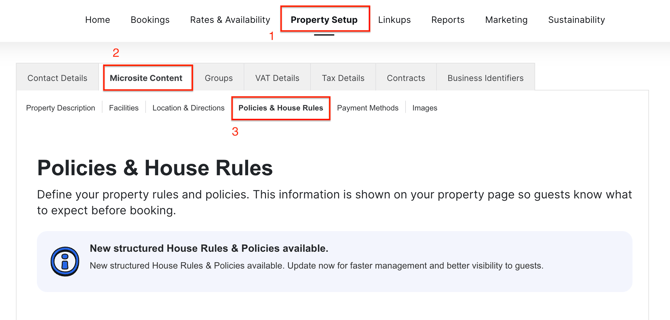
Scroll down to the Avalibility section.

Step 3: Add a CTA/CTD rule
In the Closed to Arrival / Departure (CTA/CTD) section:
- Choose a From date and To date for the rule.
- Under Closed to, select the restriction type:
- Arrival — Closed to Arrival only
- Departure — Closed to Departure only
- Arrival and Departure — both apply
- Click Add.
- Click on the Save button to save your changes.
When the rule is saved, you will see a confirmation such as Restrictions updated for the selected period.


Step 4: Edit or remove a CTA/CTD rule
To edit an existing rule:
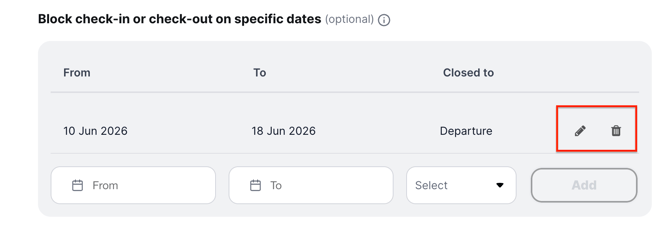
- Click the pencil icon on the row you want to change.
- Update the From, To, or Closed to values.
- Confirm the change, then click Update Policies.
To delete a rule:
- Click the trash icon on the row.
- Confirm when asked whether you want to delete the Closed to Arrival / Departure restriction.
- Click Update Policies.
The edit and delete flows follow the same pattern as Specific Minimum Nights restrictions.
Step 5: CTA/CTD on your availability calendar
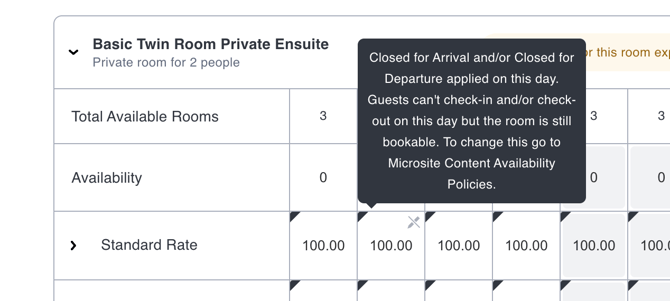
When a CTA/CTD rule covers a date, you cannot edit availability for affected rates directly on the availability calendar.
Hover over the restricted dates to see a tooltip explaining that availability is controlled by a CTA/CTD rule and that you should remove or change the rule under Availability Policies if you need to edit those dates.
Things to watch for
Existing bookings on CTA dates
If you apply a CTA rule on dates that already have bookings, Inbox will show a warning before you save.
Read the message carefully. Guests may still need to check in or out on those dates, make sure you can accommodate them before you confirm.
When you proceed, you will see:
Your policies have been updated. Existing bookings remain on the affected dates.