
This guide covers how properties manage booking cancellations, handle payment issues, process no-shows, and maintain accurate records within the Hostelworld Extranet Inbox.
Pre-Cancellation Requirements
Before processing any direct cancellation request from a guest:
- Written Documentation Required: Advise guests to submit all cancellation requests via email or direct them to the official Hostelworld cancellation form to ensure proper documentation.
- Verify Email Address: Always confirm that the cancellation request originates from the exact email address used to make the booking.
- No Partial Cancellations: The system does not support partial cancellations. You can only cancel an entire booking.
| Rate Type | Rules & Workflow |
| Free Cancellation (FC) | Properties cannot cancel via Inbox while the Free Cancellation window is active. Guests must cancel online via their Hostelworld account. If requested by email, forward the request to Support. Inbox cancellation unlocks only after the FC window expires. |
| Non-Refundable (NRR) |
If Guest cancels or requests cancellation: You are still entitled to charge full amount. If Payment Fails: Report a payment issue and wait 24 hours to cancel under "Issues with Payment". Do NOT attempt to charge the card after cancelling. |
Steps to Report a Payment Issue
- Access the Booking
- Go to your Bookings page on the Extranet.
- Find the booking in question and select it to open the details.
- Initiate Report Payment Issue
- In the booking details, manage booking section at the bottom of the page on the left-hand side, locate and click the Report Payment Issue button.

3. Select Payment Issue Details
- Upon hitting the "Report Payment Issue" button, a pop-up will appear with options to report the payment issue.
- Choose the reason for the payment issue.

-
- Check the box to Send me a copy of the email if you wish to receive a confirmation email. This helps maintain a record of the cancellation and the communication sent to the guest.
- Click Send Email to notify the guest of the payment issue.
- An email will be sent to the guest with instructions to update their payment information.
6 . Check Banner Notification- Once the email is sent, a notification banner will appear at the top of the booking page, showing that the guest has been notified.
- Important: Only the most recent notification will display if multiple payment issues are reported.


Next Steps if Payment Is Not Updated
-
- If the guest doesn’t respond to update their payment information, you can proceed with cancellation based on payment issues. The cancel booking option though, just appears after 24hs a "Report Payment Issue" is performed.
- If you report a payment issue and then cancel the booking, a cancellation banner will display above the payment issue notification.
How Can I Cancel a Booking?
- Go to the Bookings Page
- In your Extranet, go to the Bookings page and select the specific booking you wish to cancel.
- Click "Cancel Booking"
- In the booking details, in the manage booking section which is at the bottom of the page on the left-hand side, click the Cancel Booking button.

3. Select the Reason for Cancellation
-
- Choose the relevant cancellation reason from the options provided. Options may include:
- Issues with Payment (note that this option will only show up after 24hs you reported a payment issue, and the guest was notified by email)
- The guest is requesting a cancellation
- Choose the relevant cancellation reason from the options provided. Options may include:

4. Opt-In for Email Notification
-
- Check the box to Send me a copy of the email if you wish to receive a confirmation email. This helps maintain a record of the cancellation and the communication sent to the guest.
5. Confirm Cancellation- Click Yes, cancel booking to confirm the cancellation and notify the guest.
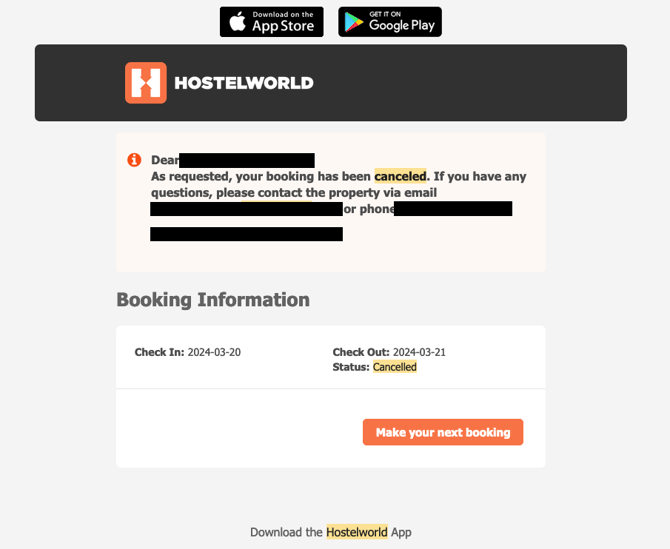
- After confirming, a fixed notification banner will appear at the top of the booking page, confirming the cancellation.

- Payment issues:

- The guest is requesting a cancellation:
- Go to the Bookings Page
- In your Extranet, go to the Bookings page and select the specific booking you wish to cancel.
- Click "Cancel Booking"
- Within the booking details, in the manage booking section which is at the bottom of the page on the left-hand side, click Cancel Booking.
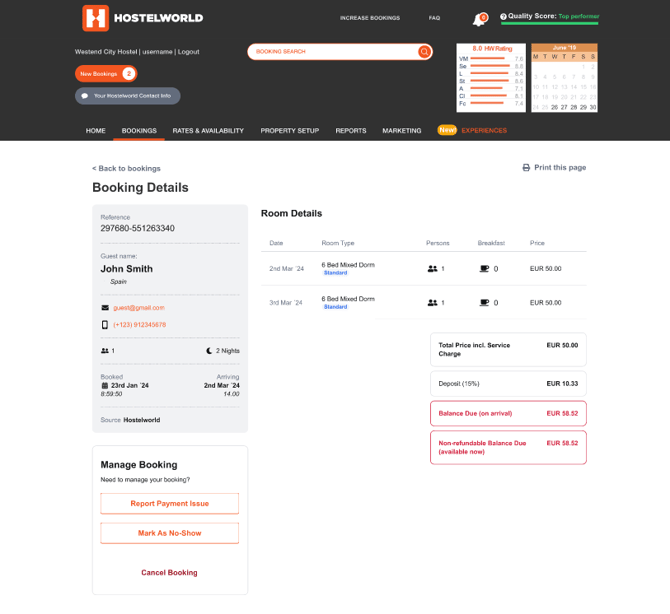
3. Select the Cancellation Reason
-
- A pop-up will display, so please choose the appropriate reason for cancellation:
- Issue During Stay (if there was an in-stay problem, so this option will only be available after the check-in date)
- The guest is requesting a cancellation (if the guest has specifically requested it, thus this option is available both before and after check-in)
- A pop-up will display, so please choose the appropriate reason for cancellation:

4. Opt-In for Email Notification
-
- Check Send me a copy of the email if you would like a record of the cancellation email sent to the guest.
5. Confirm Cancellation- Click Yes, cancel booking to complete the cancellation and notify the guest.
- A banner will appear at the top of the booking page with a timestamp, confirming the cancellation.
6. Booking has been cancelled
- After a booking has been cancelled, all actions related to manage booking, except for "View Card Information," will be disabled to prevent further changes.
Frequently Asked Questions
- How do I know if an email has already been sent to a guest?
⛔ CRITICAL RULE: NO POST-CANCELLATION CHARGES
Do NOT attempt to charge a guest’s card AFTER clicking "Cancel Booking."
- Why? Finalizing a cancellation formally terminates the contract and sends an official cancellation confirmation to the guest. Attempting to process payments after issuing a cancellation notice causes severe guest disputes, invalid chargeback claims, and direct Support escalations.
- Correct Sequence: If you intend to collect outstanding balances for an NRR booking, you must attempt all card charges BEFORE completing the cancellation. Once the booking is cancelled, all payment collection attempts must stop immediately.
How to mark a booking as a no-show in Hostelworld?
- Access the No-Show Option:
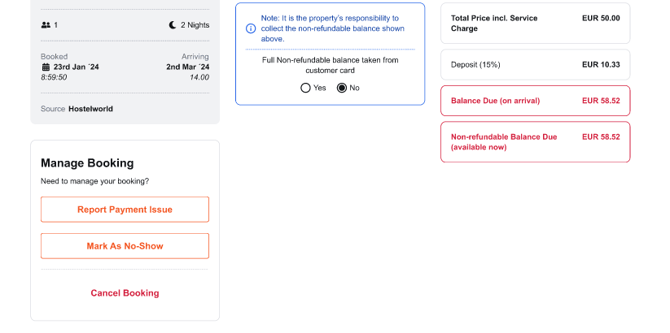
-
- Multi-night bookings: The option remains available for up to 48 hours after the check-in date.
- One-night bookings: The option will expire at 23:59 on the check-in date. After this time, the “Mark as No-Show” button will automatically disappear, and all manage booking buttons will be greyed out since the booking has already come to an end.
- Provide the comments you'd like to share with our support team and click on "Mark as No-show" to notify the guest. Your comments won't be shared with the guest.
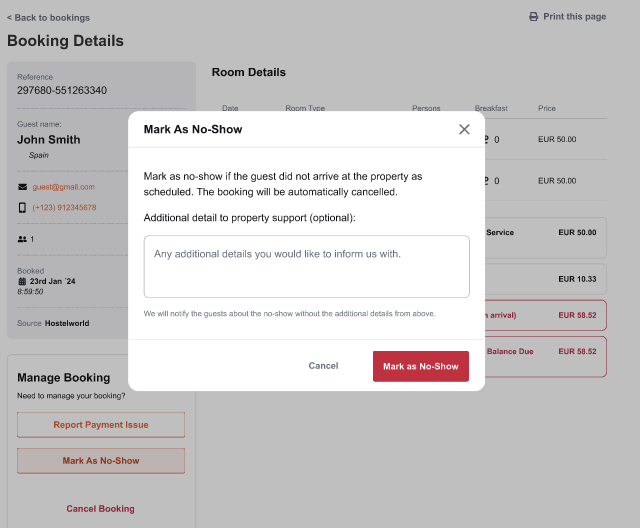
- Confirm the No-Show:
- After marking a booking as a no-show, a confirmation banner will appear at the top of the booking page confirming the booking was cancelled due to a no-show.
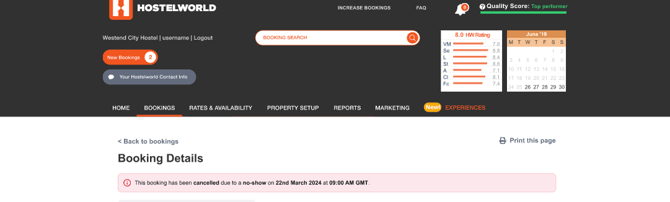

- After No-Show is confirmed, the booking will be cancelled
- After a booking has been marked as a no-show, all actions related to the booking, except for "View Card Information," will be disabled to prevent further changes.
Canceling a Booking in Hostelworld as a guest:
All customers can cancel their bookings up to the date of arrival through their MyWorld account. If a customer cancels late, the system will notify them that a charge might occur. To see how customers can cancel their bookings via their Hostelworld account, please watch this short video: